
How to Make Assist 2.0 Write in Your Brand Voice / Style
It's often important that Assist writes in a way that's consistent to your brand, tone, style guide, etc. and it's easy to ensure it does. For example, you need it to use simple, highly-readable British English.
All you need is Knowledge!
You can do this at the Workspace or Project level, depending on how broadly you want the writing style to be applied. (There's also a third option — adding guidelines directly to an Output Template — which we'll touch on at the end.)
Workspace Steps
If you want your instructions to be applied to every Output in every Project throughout the entire Workspace:
Click Workspace Knowledge in the main menu on the left (under the WORKSPACE heading)
Click Add Knowledge in the top-right
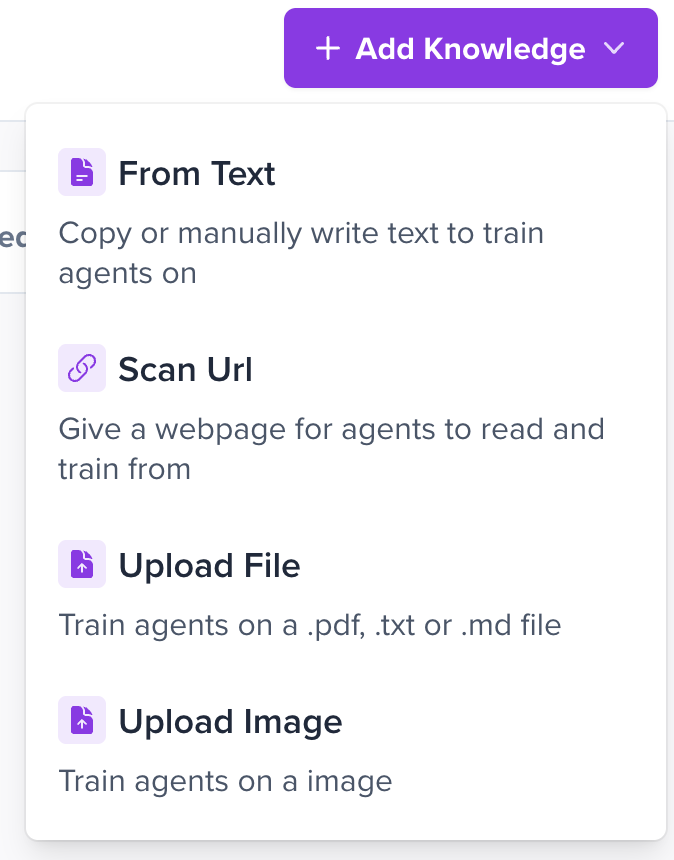
Enter your instructions and make sure to enable Always Include so that it's automatically included in all new Projects
Click Save Knowledge and you're done!
Now every Output in every Project in this Workspace will use your instructions.
Project Steps
If you only want your instructions to be applied to a specific Project:
Open your Project and click the Project Knowledge button in the top-right
Click Add Knowledge in the top-right
Just like when adding Workspace Knowledge, enter your instructions and make sure to enable Always Include so that it's automatically applied
Click Save Knowledge and you're good to go!
Now every Output in this Project will make use of your instructions.