
📑 Outputs and Output Templates
Output Templates are one of the key ways to drive large productivity gains in Assist 2.0. Think of them as intelligent templates that help you create standard documents quickly and consistently.
Unlike static templates, Output Templates understand the context and purpose of each section, allowing Assist to generate high-quality, customised documents that follow proven structures.
A quick note on terminology:
- An Output Template is the reusable structure or workflow.
- An Output is the final generated artefact (e.g. a document, an HTML file, a deck).
When to Use Output Templates
Output Templates are perfect for documents you create repeatedly that have:
- Standard structures but require specific, tailored content
- Consistent sections that need key information to be effective
- Professional formatting requirements
Example: Briefing documents often have standard sections (Executive Summary, Background, Recommendations, etc.) that need specific information to become effective briefs.
How Output Templates Work
1. Getting Started
In Assist 2.0, you don't manually pick an Output Template from a list before you start — the process is conversational.
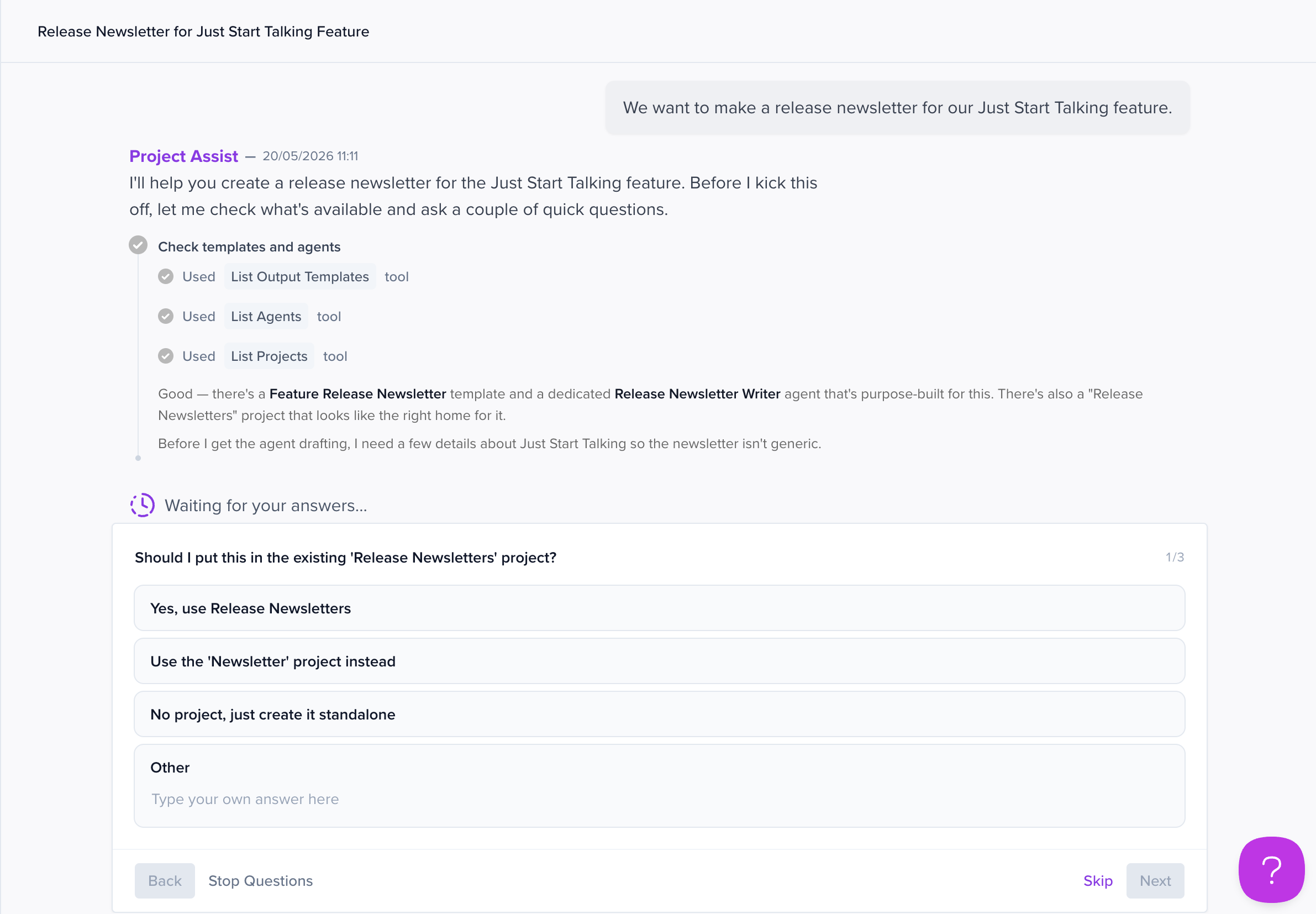
- Open Workspace Chat (or a project's chat) and describe what you want to create. For example: "We want to make a release newsletter for our Just Start Talking feature."
-
Assist will search your Workspace Knowledge, existing Projects, and existing Output Templates to find relevant context.
It will then either:
- Suggest an existing Output Template (and Agent) if something similar already exists, or
- Propose creating a new Output Template — and a specialised Agent to drive it — if the task looks repeatable, or
- Just generate the result directly if it's a one-off.
2. The Interface
The split-screen Output Screen from the original Assist is gone. In Assist 2.0:
- Centre: A single chat window is the main workspace.
- Right-hand panel: When Assist generates a file or output, a collapsible panel opens on the right showing a live preview (HTML, DOCX, PPTX, etc.) without needing to download anything.
3. Providing Information
Rather than the template prompting you with a fixed set of questions, Assist will ask clarifying questions inline in the chat — often as structured prompts. You may be asked things like:
- Is this a one-off, or a repeatable task?
- Who is the audience?
- Should this live in an existing project or a new one?
In many cases, no extra input is needed if the information already exists in your Workspace Knowledge or project files.
4. Triggering the Process
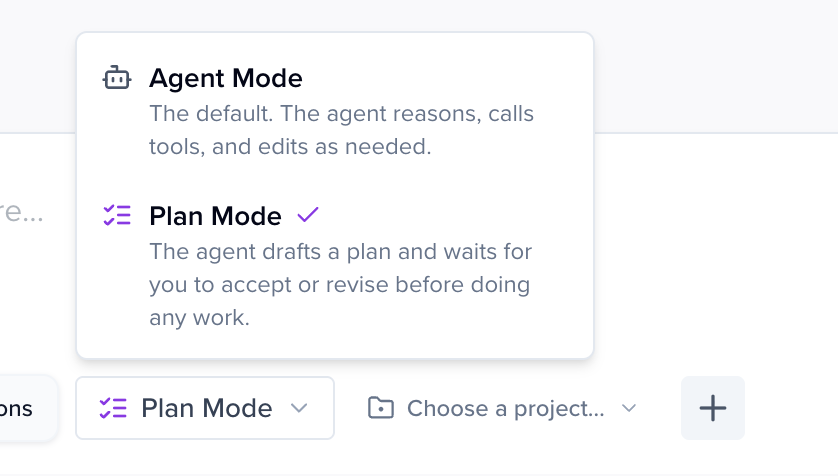
You no longer type "go" to start. For anything non-trivial, Assist enters Plan Mode:
- Assist shows you a step-by-step plan (e.g. create a project, create an Output Template, create an Agent, generate the file).
- You approve it with Accept and go (or by replying in the chat, e.g. "Please go ahead").
- Assist then executes the plan, showing live task progress and the tools it's using along the way.
How Output Templates Generate Content
Intelligent Template Structure
Each Output Template functions as an intelligent template where:
- Every section has specific instructions built into it
- The template understands what type of content belongs in each section
- Context awareness ensures appropriate tone, style, and content for each part
Influencing the Output
You can control and customise what gets delivered through:
Chat:
- Provide specific requirements and preferences
- Ask for revisions or adjustments
- Give additional context or constraints
- Tag an Agent directly (e.g.
@ReleaseNewsletterWriter) to invoke its specific capabilities
Project and Workspace Resources:
- Workspace Knowledge and project knowledge are searched automatically
- Upload files into the project for Assist to draw on
- Use Agents — purpose-built helpers with their own instructions
- Use Skills — script-based capabilities you (or Assist) can attach to an Agent for precise, repeatable actions like word counting, formatting, or data processing
Types of Output Templates
- Standard / out-of-the-box: Assist can search the existing library of templates and Agents and reuse them.
- Custom: Assist can create new Output Templates and Agents on the fly for your specific needs.
- Complex workflows: For multi-step tasks, Plan Mode chains together actions — creating projects, templates, Agents, Skills, and files — from a single request.
Best Practices
- Be specific in your initial request — the clearer the goal, the better the plan
- Use Workspace Knowledge and project files — upload relevant material before starting
- Iterate through chat — refine sections as needed
- Let Assist save successful Output Templates and Agents so you can reuse them
- Experiment with different approaches to find what works best for your needs
Note: Workspace Chat is scoped to a single workspace. Assist can't reach knowledge or assets in other workspaces from within a chat session — the exception is Organisation Knowledge, which is shared across all workspaces in your organisation and is always available.