
📑 Generating Outputs in Assist 2.0
Overview
This guide walks you through generating a structured document in Assist 2.0. Instead of hunting through menus to pick a template, you simply describe what you want in the chat — Assist plans the work, picks (or builds) the right template and agent, and produces your output.
Prerequisites
- You must be logged into your Assist 2.0 workspace.
- Have your source file ready (e.g., a
.docx,.txt, or.pdfof your notes, transcript, or other raw data).
Step-by-Step Instructions
The process is now a single conversation. There's no need to manually create a project, pick a template from a modal, or open a separate output editor first — Assist handles all of that based on what you ask for.
Part 1: Start the Conversation
- From your workspace, open the main chat interface (Just Start Talking).
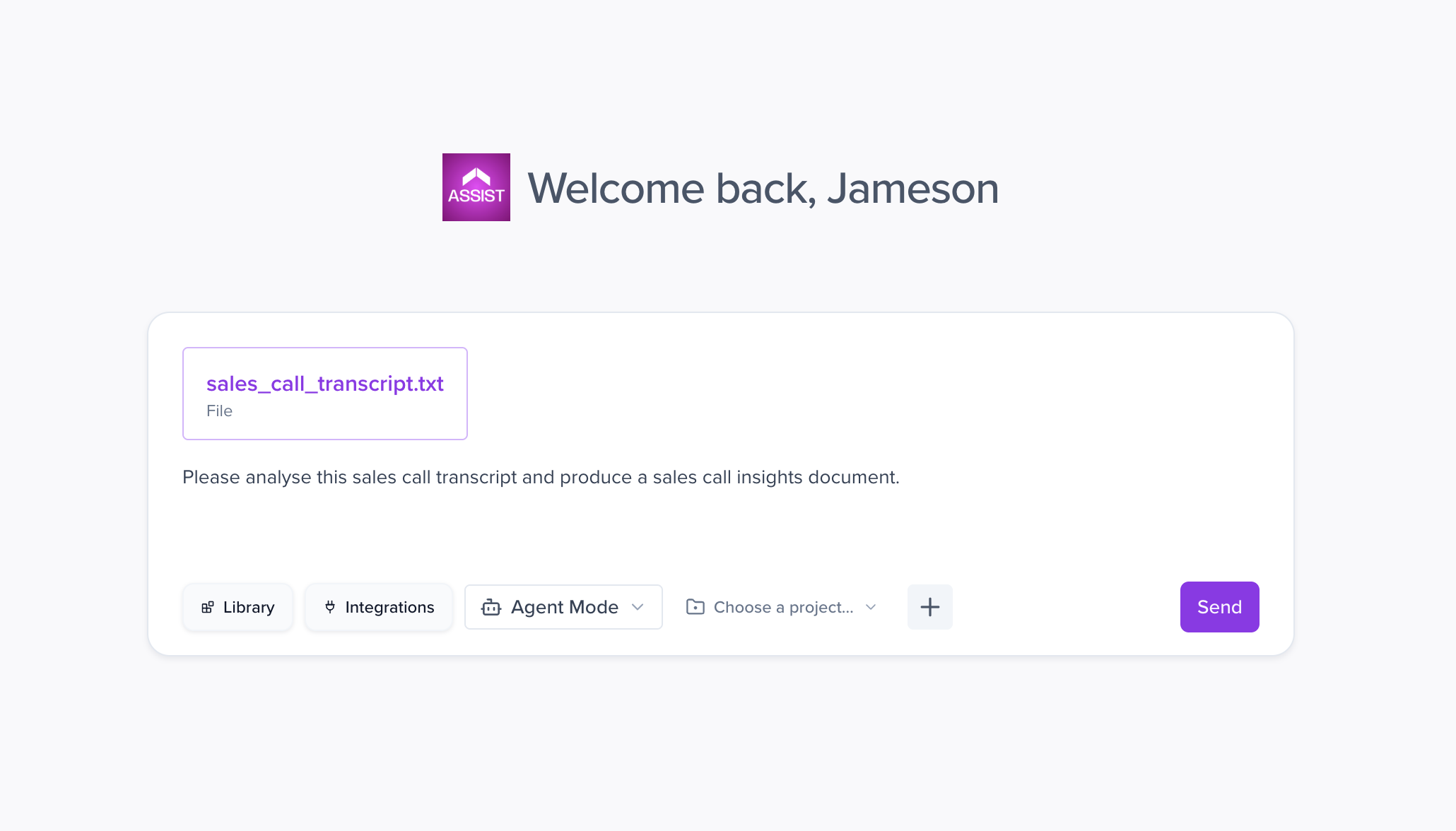
- Attach your source document using the paperclip icon in the chat input. For this example, we're uploading a sales call transcript.
-
In plain language, tell Assist what you want. The more specific you are about the kind of output, the better — Assist will match your request to an existing template if one fits, or create a new one if needed.
Example prompt: Please analyse this sales call transcript and produce a sales call insights document.
Part 2: Plan or Execute
Assist 2.0 has two modes for handling your request:
- Execute Mode — Assist gets straight to work: finding the right template, agent, and project, then generating the output.
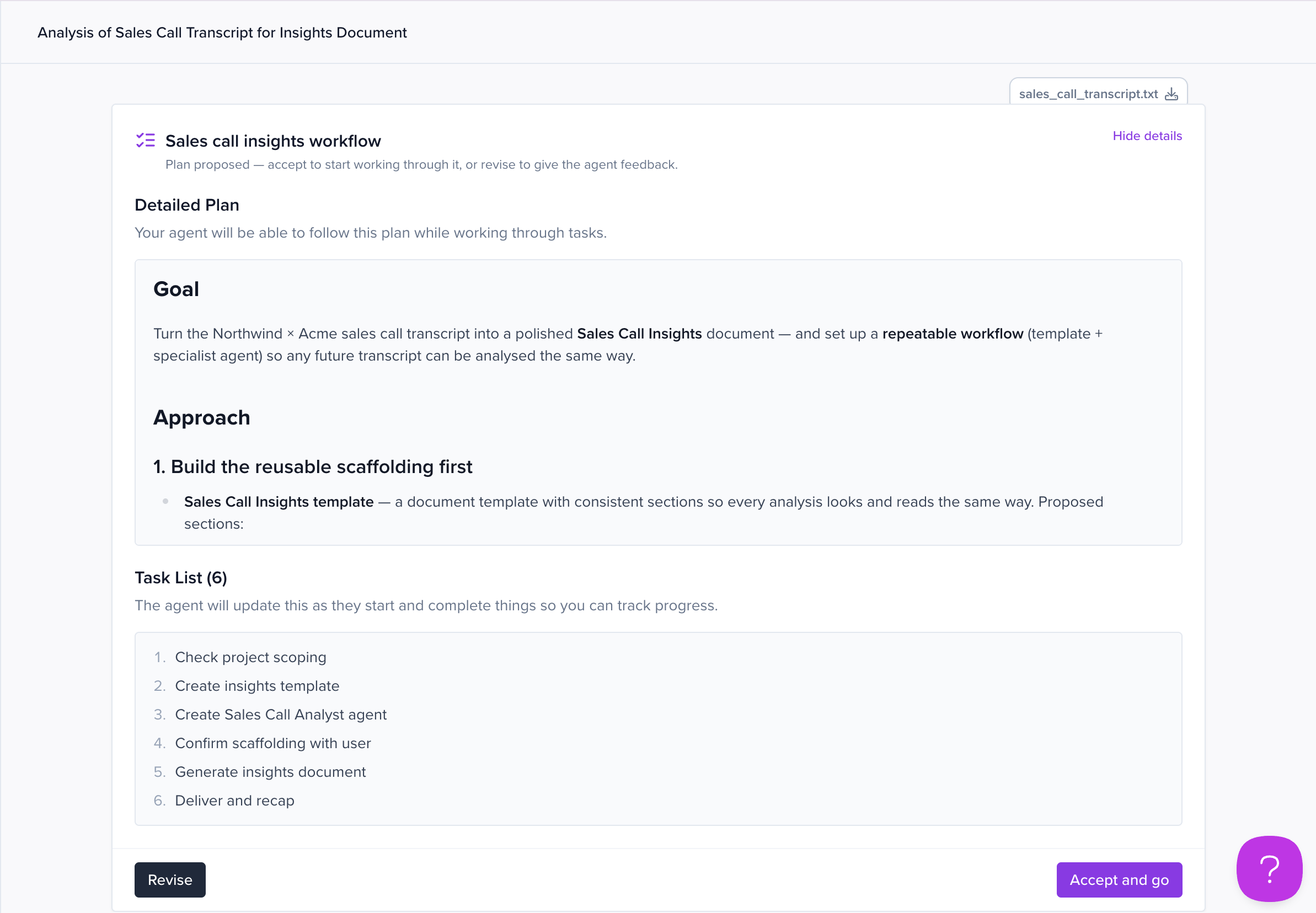
- Plan Mode — Assist first proposes a plan (e.g., "I'll use the Sales Call Insights template, create an output in your existing project, and populate it from the transcript"). You can review and revise the plan before accepting it.
Pick whichever suits the task. For routine work, Execute is faster. For anything unfamiliar or high-stakes, Plan Mode lets you sanity-check before any output is created.
Part 3: Watch It Work
Once Assist is executing, you'll see its activity in the chat — searching for matching templates, agents, and existing assets, then generating the output. Tool and thinking activity is shown live while it works, and collapses behind an expander once the final response is delivered.
If a suitable template already exists in your workspace, Assist will reuse it rather than create a duplicate. If nothing fits, it will create a new template (and agent, if needed) on the fly.
Part 4: Review Your Output
When Assist is done, your generated output opens in the output view. This is divided into:
- Left panel: The chat, where you can ask for refinements ("make the tone more formal," "add a section on next steps," etc.).
- Right panel: The populated sections of your output (e.g., Call Insights, Response Email).
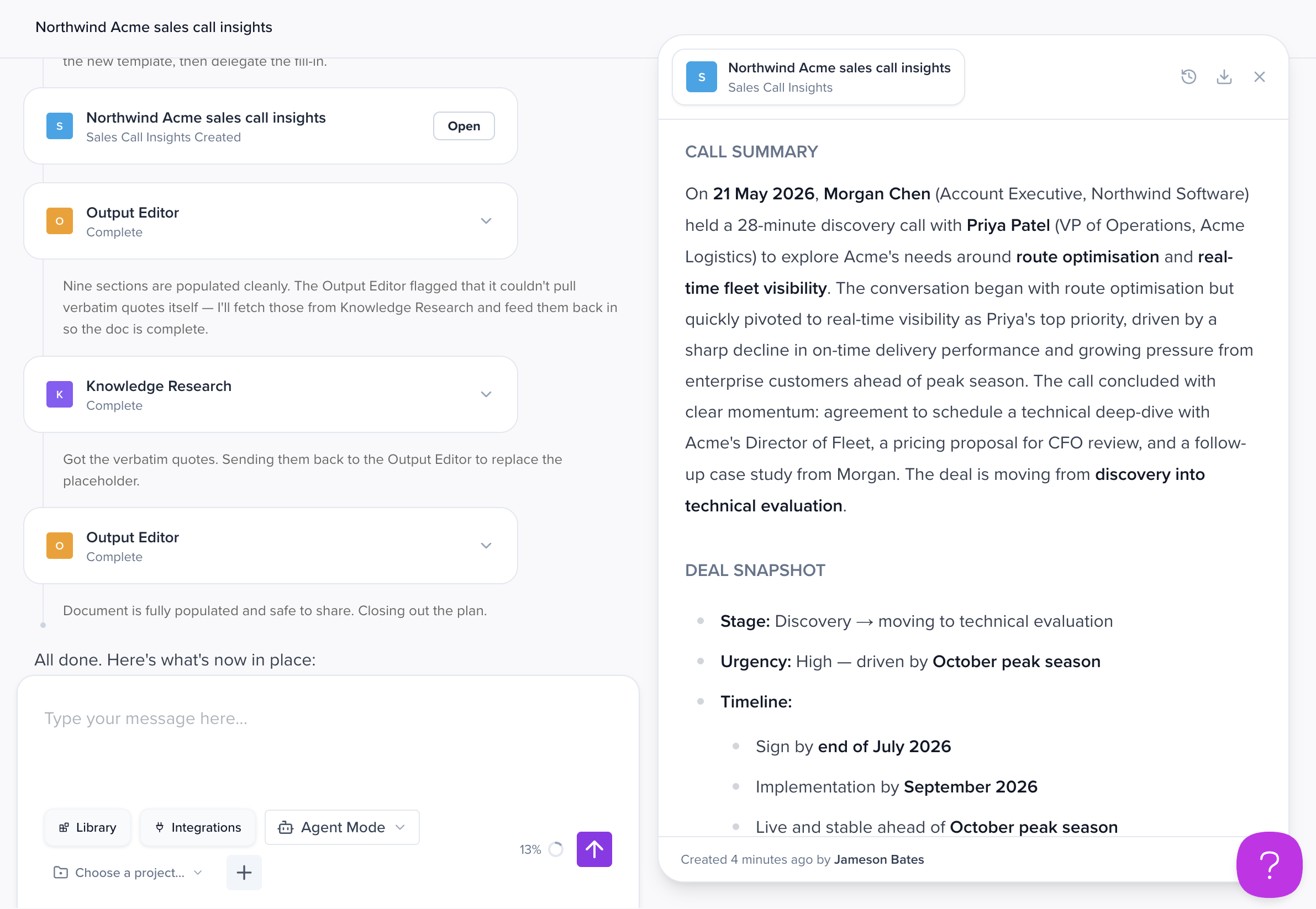
You can read through the content, edit any section directly, copy text out, or export the document.
Reviewing and Using Your Output
Assist has transformed your unstructured source file into a structured, actionable asset. From here you can:
- Edit sections directly in the right panel.
- Ask Assist in chat to refine, expand, or rewrite any section.
- Export the document in your preferred format.
What's Next?
- Learn how to refine generated content by chatting with Assist.
- Explore how Assist creates and reuses templates and agents across your workspace.
- Read about the difference between Plan Mode and Execute Mode.