
Adding Knowledge to Agents and Templates
Assist 2.0 lets you improve outputs by attaching knowledge directly to agents and templates. Instead of relying only on long instructions, you can upload reference material that the system will read and apply automatically when generating outputs.
Why Add Knowledge?
- Ensures outputs align with brand voice, style, and best practices
- Reduces time spent re-writing or correcting AI responses
- Provides context for agents and templates without manual prompting
Adding Knowledge to Agents
-
Choose your agent
Go to Library → Agents and open the agent you want to train (for example: a Brand Voice Agent or a Research Agent).
Prepare your reference material
Examples:
- A brand guidelines PDF
- A long-form technical document
-
Example outputs (winning RFP responses, case studies, etc.)
Attach the document(s)
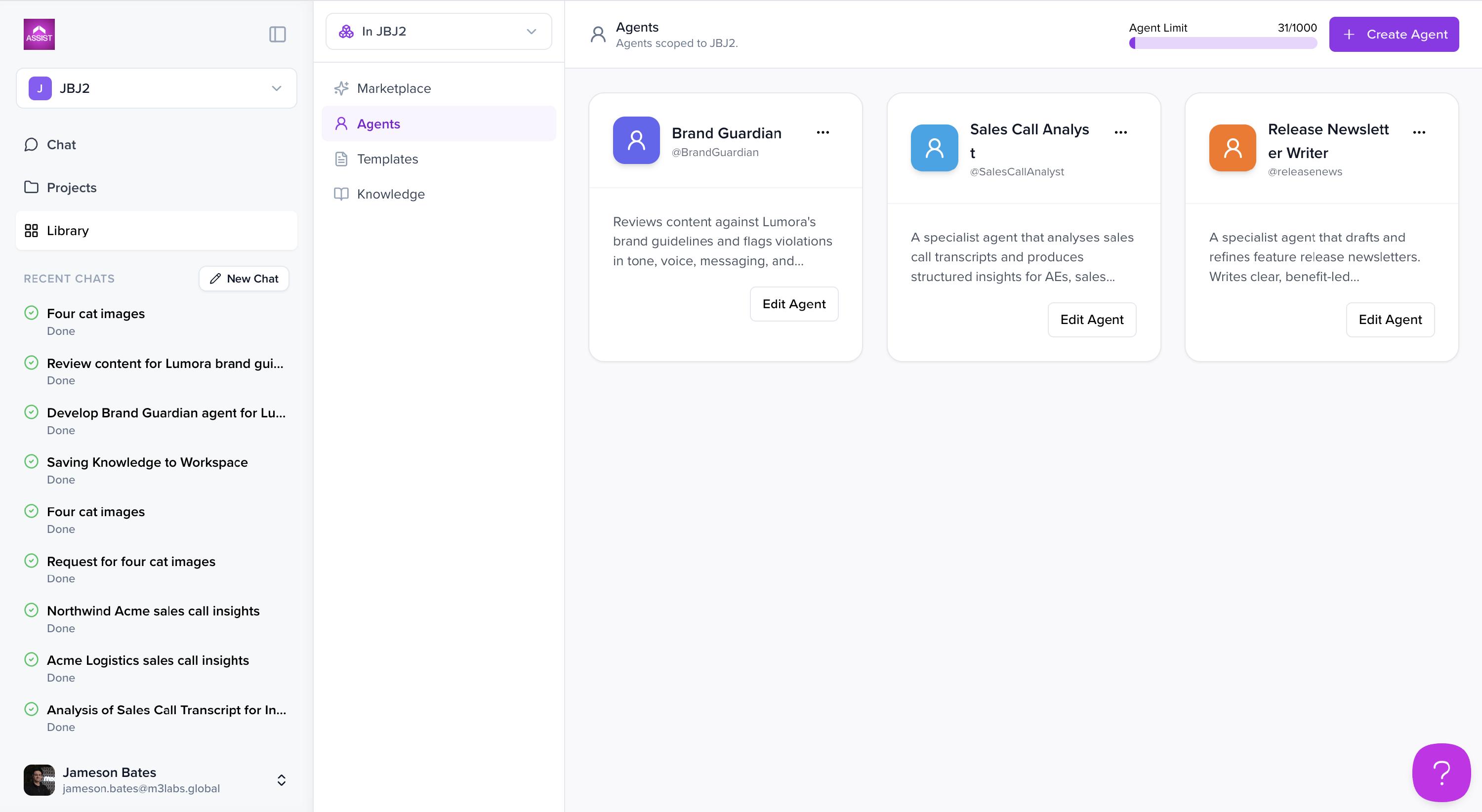
You have two options:
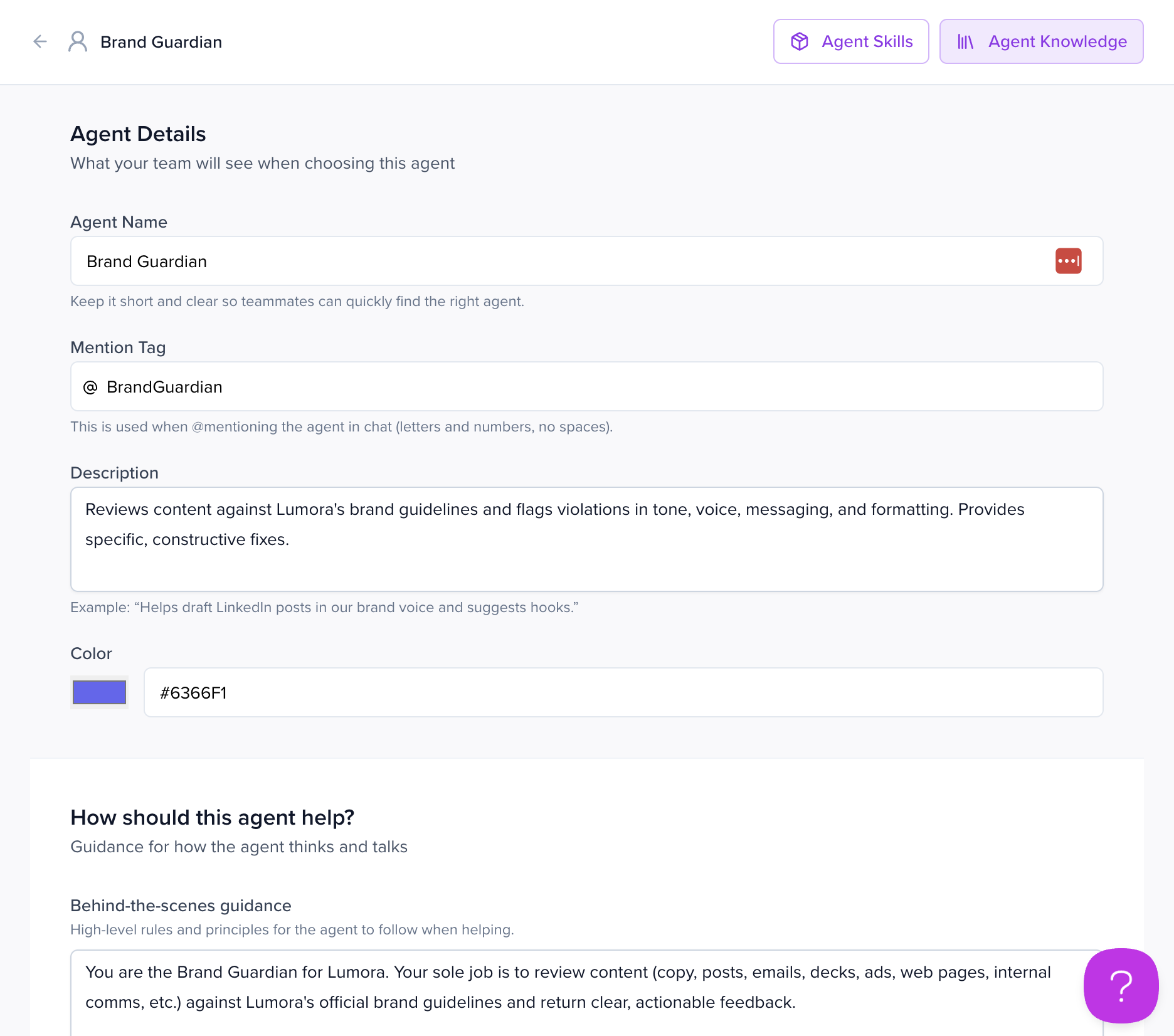
Option A — From the agent's settings
- Open the agent's settings
- Select Add Knowledge
-
Upload your file(s)
Option B — From chat
- Drop the file into the chat with the agent
- Tell Assist what it is (e.g. "this is our brand guidelines — attach it to this agent's knowledge")
-
Assist will save it to the agent's knowledge for future use
-
Save and use the agent
When the agent generates outputs, it will read and apply this knowledge automatically. You can either invoke the agent directly from chat using Just Start Talking, or it will be picked up when a relevant request is made.
Adding Knowledge to Templates
Templates can also be trained with example content:
-
Open your template
Go to Library → Templates and select the template you want to update (for example: Creative Brief, Scamp, or RFP Response).
-
Attach examples
You have two options:
Option A — From the template
Upload reference documents or previous examples of "good" outputs directly from the template's knowledge section.
Option B — From chat
Drop the file into chat and tell Assist what it is and which template it belongs to (e.g. "here's a great example of a creative brief — add it to the Creative Brief template's knowledge"). Assist will attach it for you.
These examples guide the AI in structuring and writing new outputs.
-
Use in production
When generating, the system will reference your examples to keep outputs consistent and aligned with expectations. If you've published the template to the Marketplace, installed copies will use the same attached knowledge.
Best Practices
- Use discrete, high-quality documents. Don't upload everything at once; focus on the most relevant material.
- Update knowledge regularly if your brand guidelines, messaging, or strategy changes.
- Keep knowledge scoped appropriately. Assist 2.0 respects workspace boundaries — knowledge attached in one workspace won't leak into another. For agents that span multiple projects within the same workspace (e.g. Brand Voice), upload shared reference docs at the workspace level via Library → Knowledge.
- Use chat for quick adds. If you're already in a conversation with an agent, the fastest way to add knowledge is to drop the file in and tell Assist what it is — no need to dig into settings.
- Watch for conflicts. If you have overlapping knowledge across an agent, a template, and the workspace, the AI will try to reconcile them — but cleaner inputs produce cleaner outputs.
Example Use Cases
- RFP Response Agent: Upload winning proposals so new drafts adopt the same style.
- Brand Voice Agent: Upload brand guidelines to enforce tone of voice.
- Creative Brief Template: Attach example briefs to standardize how outputs are structured.