
How to Clone Knowledge in Assist 2.0
Overview
The Clone Knowledge feature allows you to create an exact duplicate of an existing knowledge item and place it in a different location within your Assist 2.0 hierarchy. This is useful when you want to share knowledge across different levels of your organisation — for example, making project-specific knowledge available at the Organisation, Workspace, or another Project level.
Before You Start
- You must have an existing knowledge item with a "Training Complete" status.
- You should know where you want the cloned knowledge to live (Organisation, Workspace, Project, or Same Place).
Step-by-Step Guide
1. Open the Library
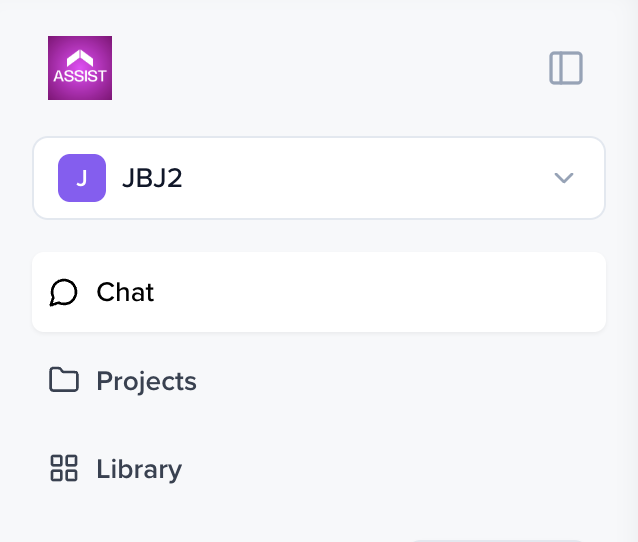
From the left-hand navigation, click Library. The Library is where all your knowledge, agents, and templates live.
2. Go to the Knowledge Tab
Within the Library, click the Knowledge tab in the left sub-navigation. You'll see all knowledge items scoped to your current workspace.

3. Click "Clone"
Find the knowledge item you want to duplicate and click the Clone button next to it.
4. Configure the Clone
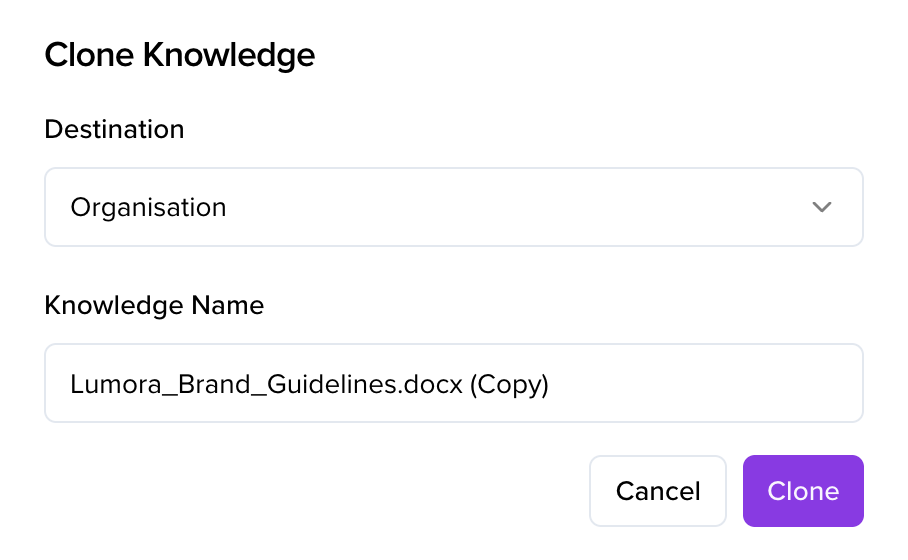
A Clone Knowledge modal will appear with the following options:
|
Field |
Description |
|---|---|
|
Destination |
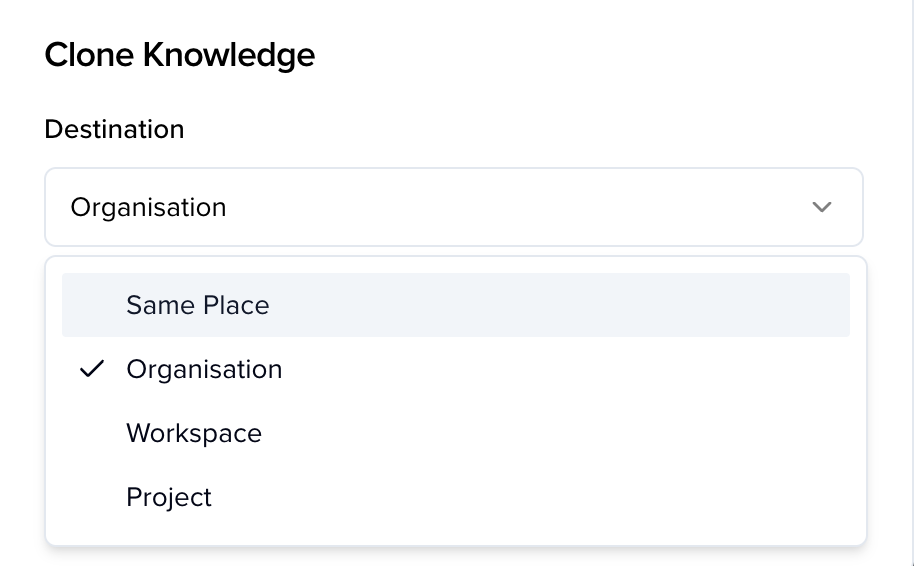
Choose where the cloned knowledge will be placed. Options include: Same Place, Organisation, Workspace, or Project. |
|
Knowledge Name |
Pre-filled with the original name plus (Copy) — e.g., "Assist Logo (Copy)". You can rename this if needed. |
Select your desired Destination from the dropdown and adjust the name if you'd like.
5. Execute the Clone
Click the purple Clone button to confirm. You'll see two notifications:
- "Cloning knowledge..." — the process has started.
- "Knowledge cloned successfully" — the clone is complete.
6. Verify the Cloned Item
Navigate to the destination where you cloned the knowledge to confirm it's there:
- For Organisation: Switch to the Organisation scope and open the Library's Knowledge tab.
- For Workspace: Make sure you're in the correct workspace, then open the Library's Knowledge tab.
- For Project: Open the relevant project and check its knowledge.
The cloned item will appear with its new name (e.g., "Assist Logo (Copy)") and a "Training Complete" status — ready to use immediately.
Key Things to Know
- Cloned knowledge retains its training status — you won't need to retrain it after cloning.
- The original knowledge item is not affected — cloning creates a completely independent copy.
- You can rename the clone during the cloning process to keep things organised.
- Cloning works across all hierarchy levels — Organisation, Workspace, and Project.
- Knowledge is workspace-scoped by default. Cloning to the Organisation level makes it available across workspaces, so be mindful of any sensitive or workspace-specific content before doing so.
Common Use Cases
|
Scenario |
Recommended Destination |
|---|---|
|
Share brand assets across all projects |
Organisation |
|
Make knowledge available to a specific team |
Workspace |
|
Duplicate knowledge for a similar project |
Project |
|
Create a backup of existing knowledge |
Same Place |