
🎯 Working With Score Metrics
What Are Score Metrics?
Score Metrics are a powerful feature that allows you to measure how well a generated output aligns with your most critical pieces of knowledge. 🎯
Think of a Score Metric as a specific instruction, objective, or brand message that you want Assist to treat as a primary guideline.
When you designate a piece of knowledge as a Score Metric, Assist actively scores your documents against that guideline, giving you an at-a-glance measurement of its accuracy and alignment.
This is perfect for ensuring that key objectives, brand voice, or mandatory information are always present and correctly represented in the content Assist produces.
How Score Metrics Work
Setting up Score Metrics is a two-step process.
You first need to tell Assist what to measure, and then you need to tell it where to show the measurement.
- Tagging the Knowledge: You must first enable the "Score Metric" option on a specific piece of knowledge within a project. This tells Assist, "This information is a key performance indicator."
- Enabling it on the Template: Next, you must enable the "Scores" Power-up on the Output Template you'll be using. This tells Assist, "For any document created with this template, please display the Score Metric results."
If both of these conditions are met, the final output document will display a score (out of 100) indicating how well it followed the guideline you set.
How to Set Up Score Metrics
Follow these steps to enable and view scores on your outputs.
Part 1: Designate Knowledge as a Score Metric
First, you need to mark a piece of knowledge as the scoring guideline.
- Navigate to the project you're working on (e.g., "ACME Traps").
- Open the project's Knowledge panel.
- Either create a new piece of knowledge or click Edit on an existing one.
- In the edit window, turn on the Score Metric toggle.
- Click Save Changes.
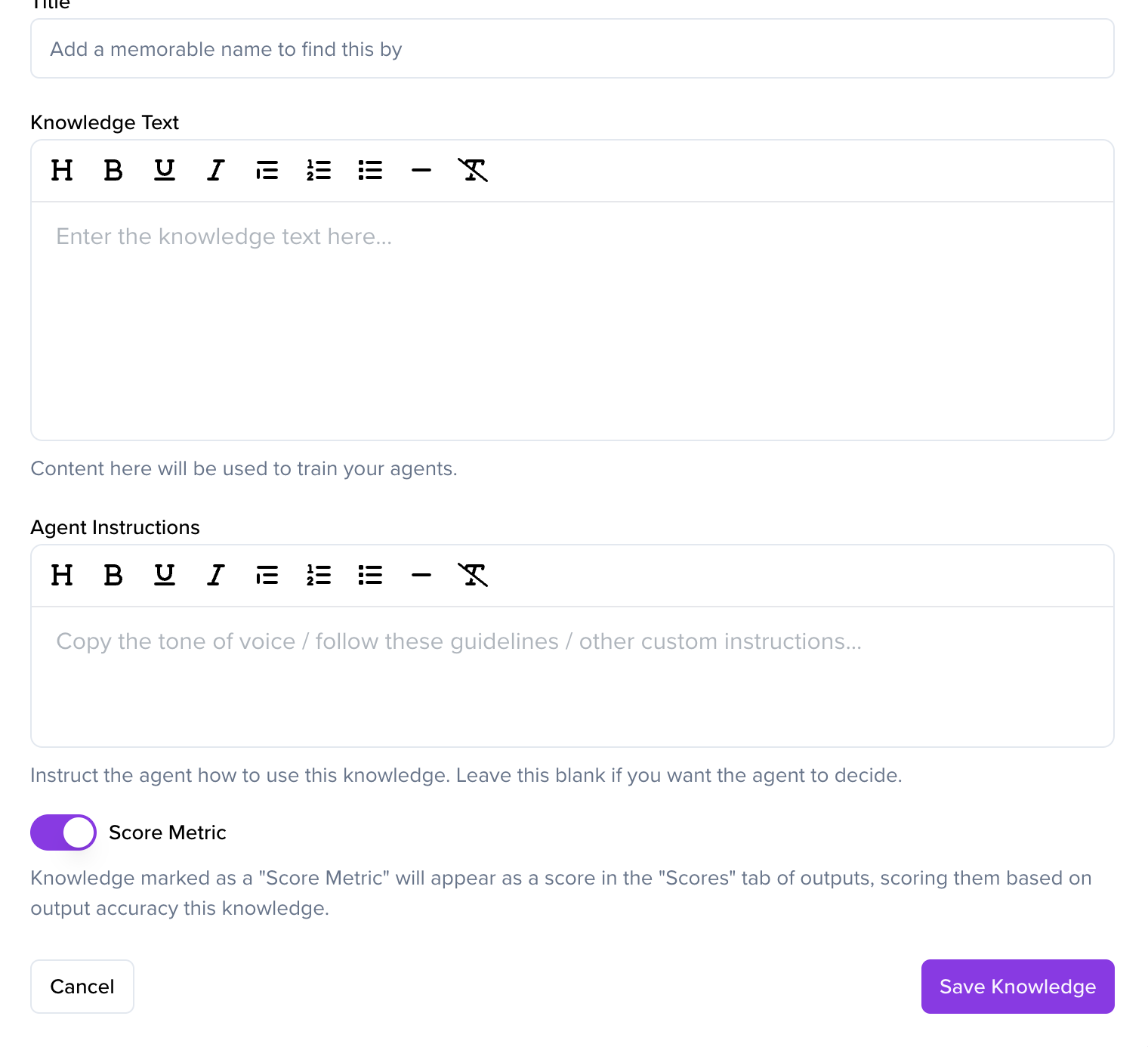
This piece of knowledge will now be used as a benchmark for scoring. ✅
Part 2: Enable Scores on the Output Template
Next, you need to enable the feature in the template that will be using this knowledge.
- From the left-hand nav, go to Library → Templates.
- Select and open the template you want to apply scoring to (e.g., "Production Brief").
- Scroll to the Power-ups section.
- Turn on the Enable Scores toggle.
- Click Update Template.
Part 3: Viewing the Score
Once both steps are complete, any new output generated using that template within that project will be scored.
- Open the relevant output document.
- In the top-right corner of the document, you'll see a coloured circle with a number inside. This is your Overall Score.
- Hover over the score to see a detailed breakdown, showing how the output scored against each Score Metric you enabled (e.g., "Evian Brand Message: 95").
That's it! You can now quantitatively measure how well your generated content adheres to your most important project guidelines.